Process model
Concept
A process model describes the sequence of steps necessary to process a certain task. In Orchestra we use a graphical visualisation of the workflows. It is based on BPMN but simplified in favour for the user experience. BPMN is a graphical notation together with a clear semantics to describe the behaviour of a process.
Creation of a process model
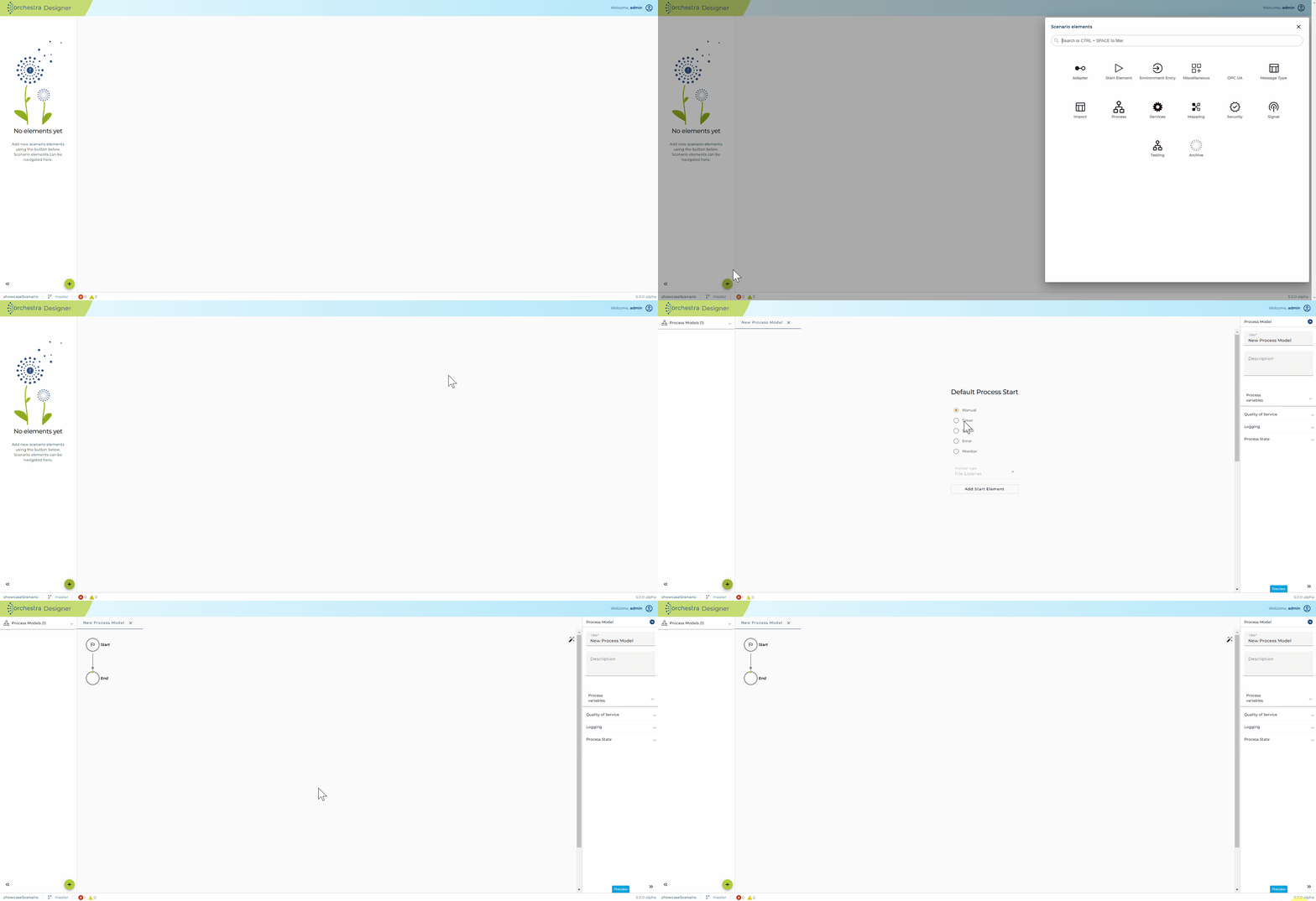
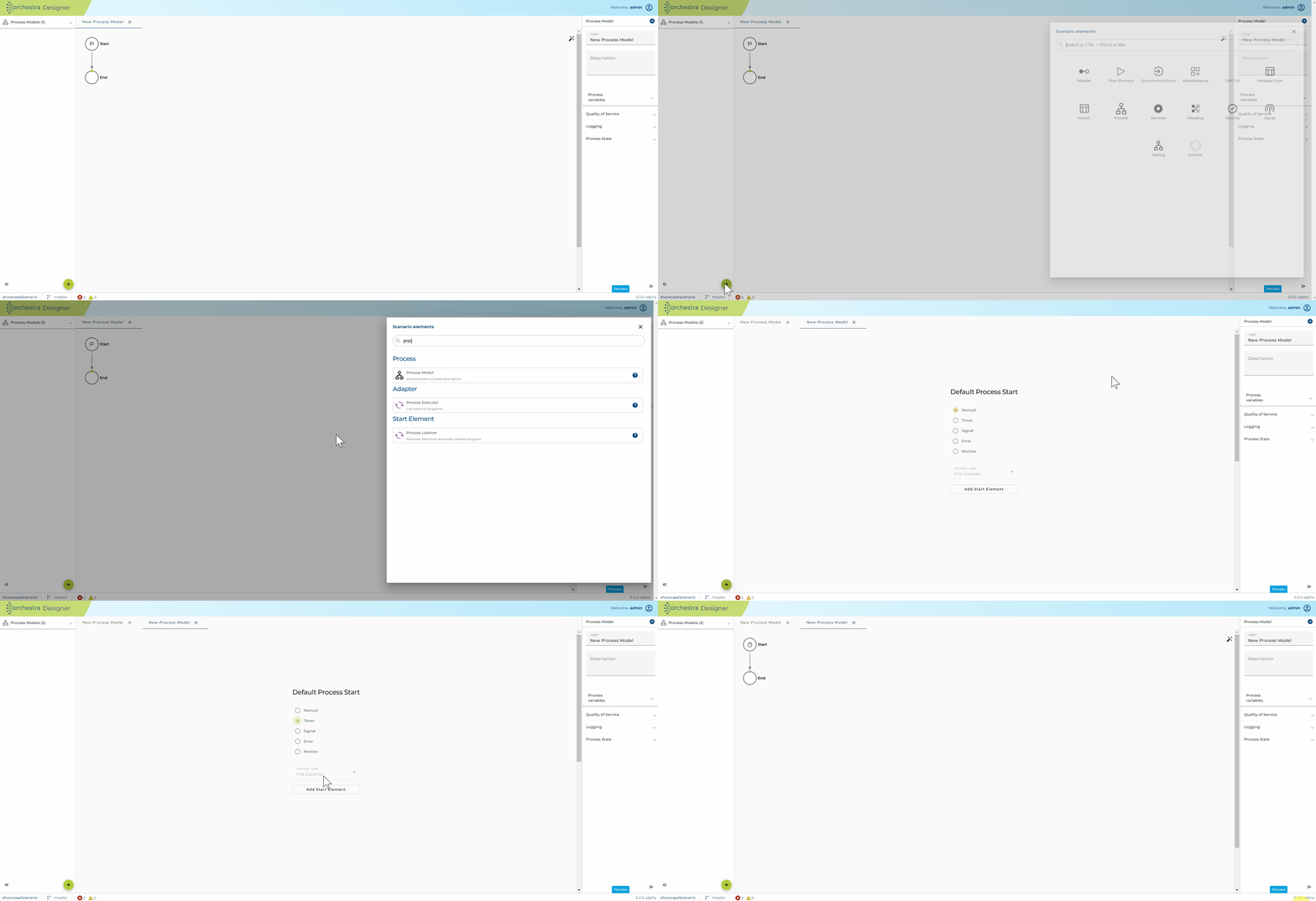
- Manual
This defines a start event for the process which can be triggered externally, for example via a service call or as an sub process model - Timer This defines a start event for the process which triggers the workflow dependent of the scheduling configuration
- Signal This defines a start event for the process which triggers the workflow by receiving the configured signal
- Error This defines a start event for the process which triggers the workflow in case of an occured error while starting.
- Monitor This defines a start event for the process which is triggered by an adapter/monitor
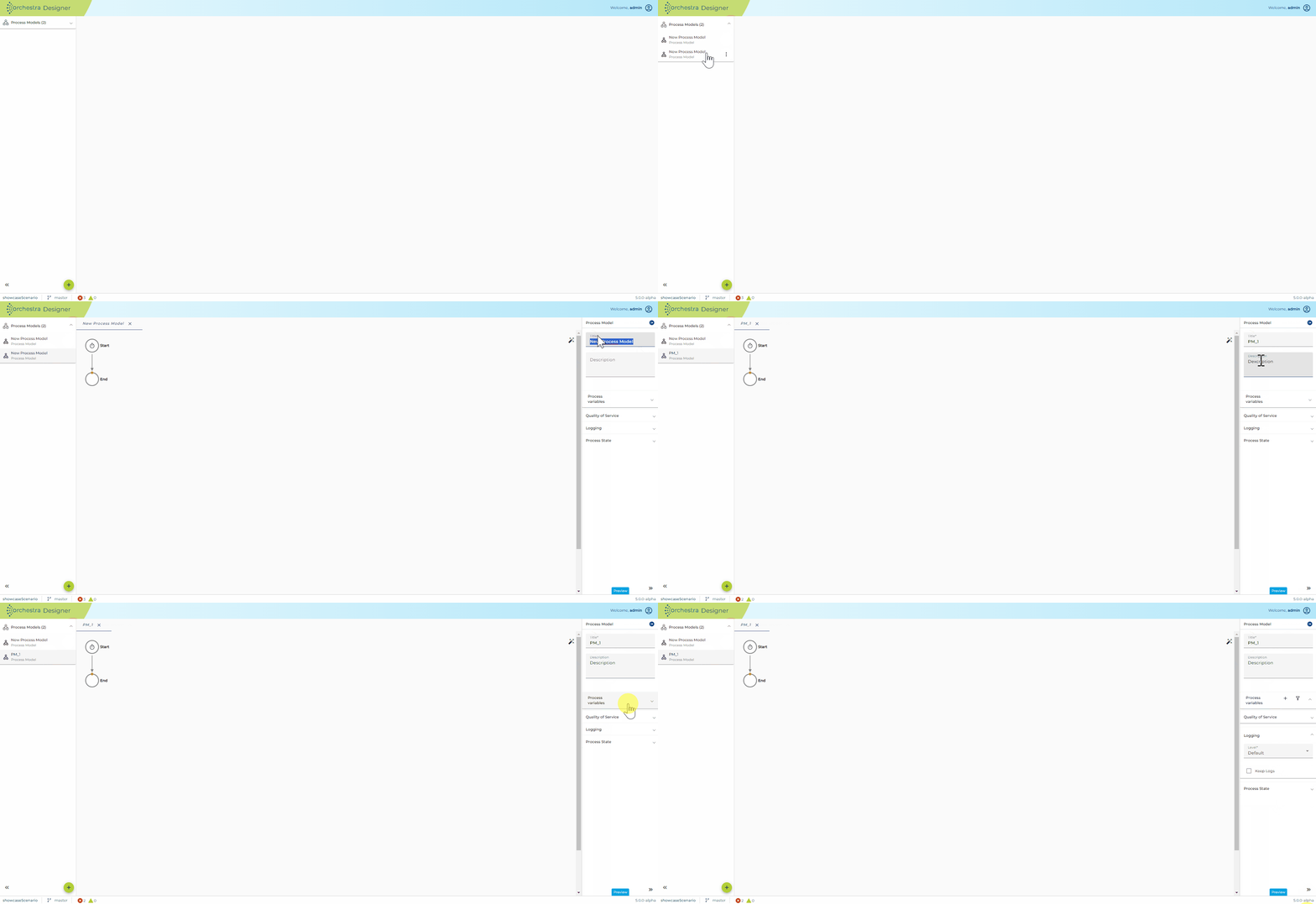
Then the process modell is created with a default name and configuration By bringing the process model into the focus of the application by clicking on it within the lefthanded scenario element component it is possible to change the configuration of all available properties.
- First you enter an appropriate name for the new process model and optionally a short description.
Dialog to name and describe a new process model
- After clicking the Finish button the process model is created and the panel to design the model is opened. Actually initially this is an empty sheet where the developer has to place the elements of the process model.
Edit a process model meta data
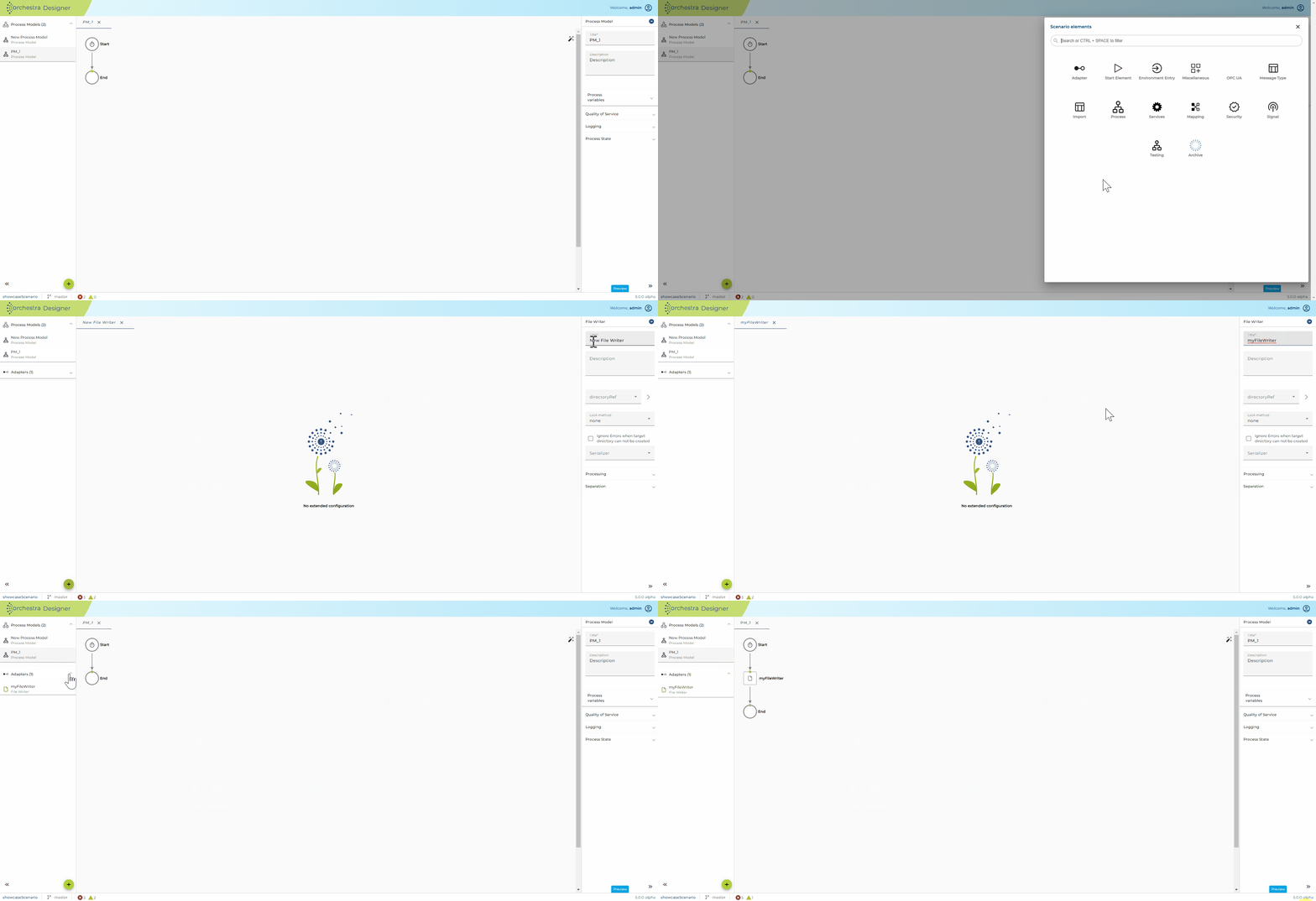
A process model is configured by changing its properties and by designing its visual representation.
Design a workflow in a process model
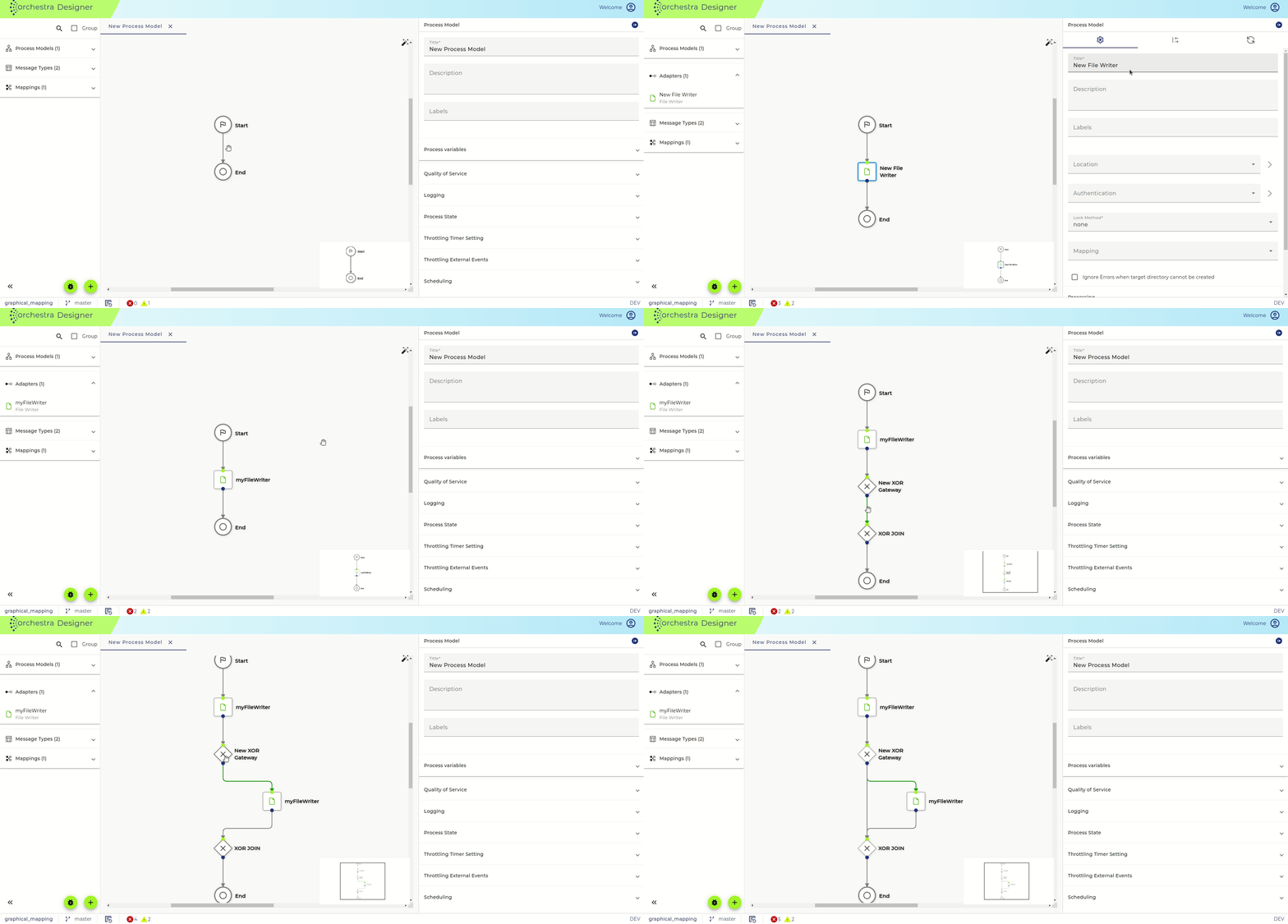
Context menu in process model
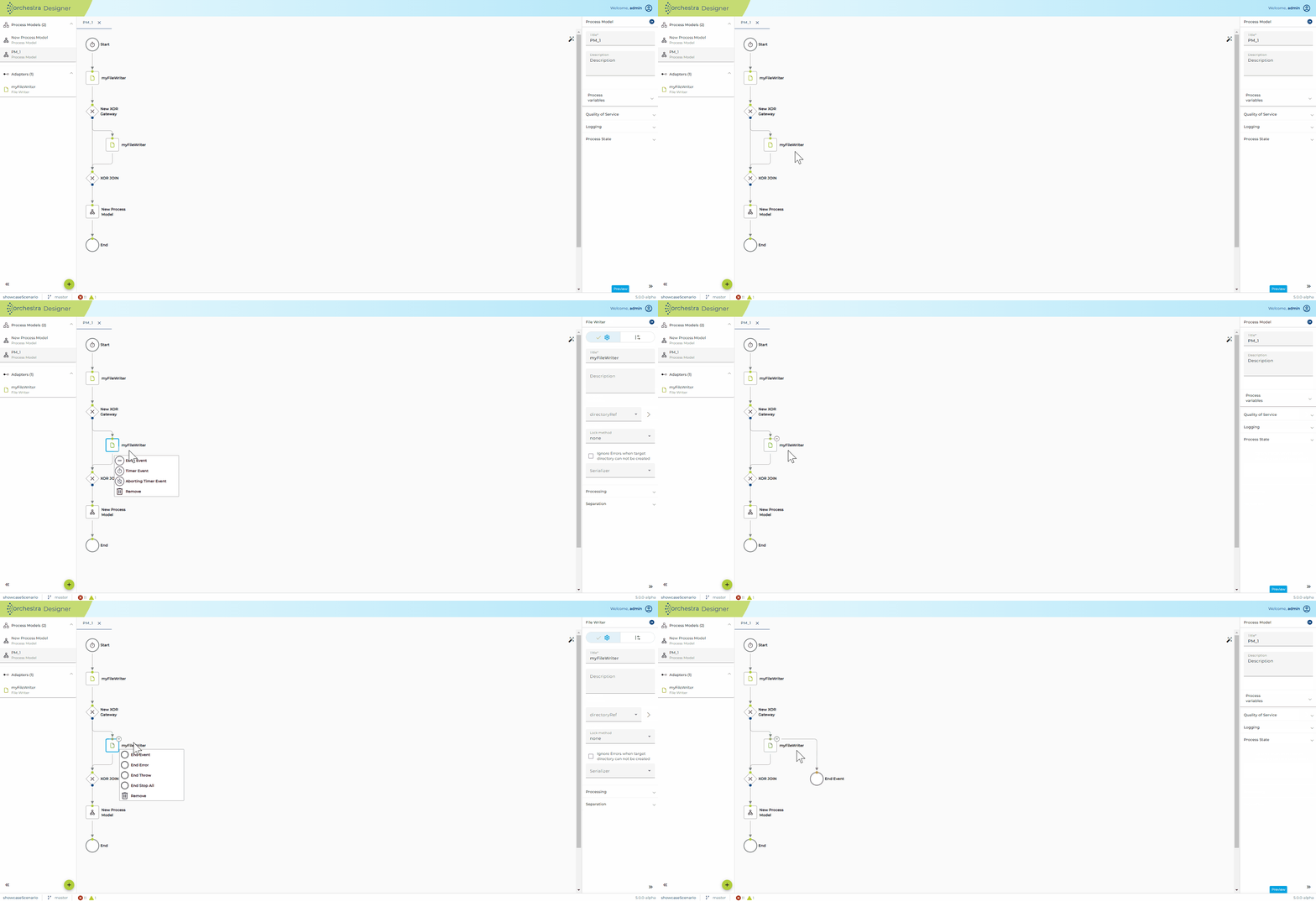
MCP
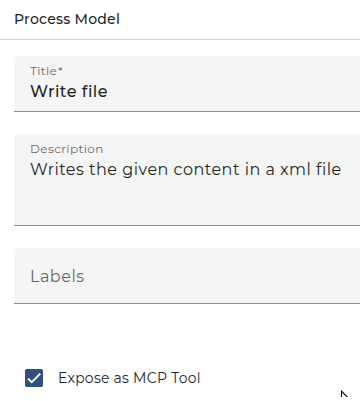
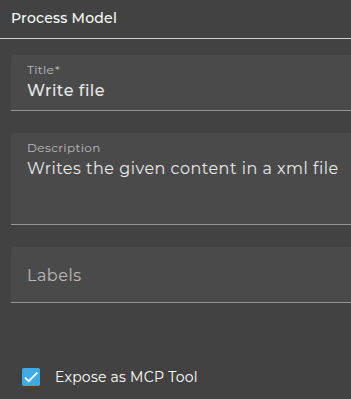
With the checkbox "Expose as MCP Tool", process models with a manual start event can be published as tools in an MCP server.
These tools can then be accessed in the MCP client through the following setting:
{
  "servers": {
    "orchestra_scenario": {
      "transport": "http",
      "url": "<http/https>://<host>:<port>/scenarios/mcp"
    }
  }
}